Help: Vacations  

[Help Contents]

The Vacations page shows you information about your vacation time and allows you to create and edit vacations. This help page has five main parts:

What are Vacations?

Vacations allow you to schedule time when you won't be coming to Pocket-Monkey to play your games. Even if you go past the time limit in your games, if you're on vacation your games won't time out (except for tournaments that don't allow vacations; those games time out normally). So for instance, if you know you're going to be away for two weeks in June on a family holiday, you can schedule a vacation and play games with even a three-day time limit, knowing that those games won't time out while you're away on holiday.

How do Vacations Work?

You tell us when you're going to be away and for how long. While you're gone, any game that allows vacations won't time out on you. (All non-tournament games allow vacations; games in tournaments may or may not allow vacations depending on the tournament.) For example, suppose you have a game where you have to make your move before the 20th of the month, but you have a vacation scheduled from the 19th through to the 27th. The game won't time out on the 20th because you're on vacation. You need to make your move before your vacation ends, though (on the 27th), because once the vacation ends, any games that didn't time out because of the vacation will time out.

How do I Schedule a Vacation?

Like this:

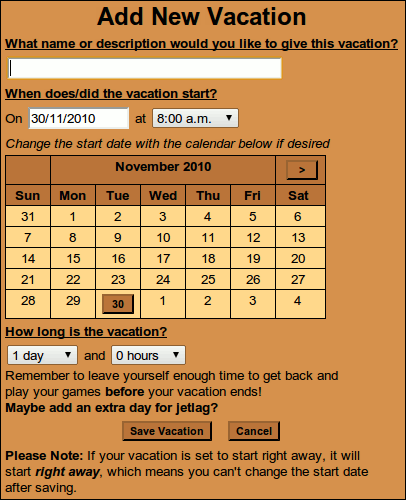
  1. On the Vacations page, click the Add Vacation button near the top. This takes you to the "Add New Vacation" page, the main part of which looks a bit like this:
  2. In the field at the top, give your vacation a name or a short description. This is just for you, no one else sees it (well, except for the Pocket-Monkey administrators, who see everything). So if you're going on a summer holiday, you might put "Summer Holiday" there.
  3. Next, tell us when the vacation starts. There are two parts to this: The date, and the time. You can type in the date if you like, but it's easier to pick the date from the calendar provided. Choose the time from the drop-down list.
  4. Now tell us how long the vacation will run by choosing from the two lists, days and hours. So for instance, if you're going to be away for two weeks, you could choose "14 days" from the days list. Be sure to give yourself a bit of grace time so that once you're back, you can play your games before the vacation ends -- you don't want to time out at the last minute because you forgot to allow an extra day for jetlag! A vacation has to be at least one day long.
  5. Click the "Save Vacation" button to save the vacation, and you're done! Saving the vacation will take you back to the vacations page, where your new vacation will be listed in the "Upcoming Vacations" list (typically; or possibly the "Active Vacations" list if you scheduled a vacation to start right away).
PLEASE NOTE: If you schedule a vacation to start right away, it will start right away. This means you won't be able to change the start date any longer (you can't change the start date of a vacation once it's running).

How do I Change a Vacation?

If the vacation isn't running yet: You can change it by clicking the [Edit] link next to it in the list of Upcoming Vacations. This takes you to the "Edit Vacation" page which looks just like the "Add New Vacation" page described above.

If the vacation is currently running: You can change the name and the length of the vacation, but not the start date/time, since it has already started. There are two different ways you can do this: On the Vacations page, the vacation will be listed in the "Active Vacations" list with [Edit] and [End Now] links next to it. If you click the [Edit] link, you'll go to an "Edit Vacation" page which looks like the "Add New Vacation" page except that it won't let you change the start date/time (and so doesn't have the calendar). You can change the name and/or length.

Alternately, if you're back and you've played your games (so they don't time out), you might want to end the vacation right away to converve vacation time. To do that, click the [End Now] link. The site will set up the earliest end date/time it can (which is at the end of the current hour -- e.g., if it's 2:14 p.m., the earliest the vacation can end is 3:00 p.m.), show you when that will be, and ask you to confirm the change by clicking [Yes] or [No].

You can't change anything about completed vacations.

Miscellaneous Questions

Q. How much vacation time can I have?
A. Up to 30 days per year. See also the note below about how that time accrues (accumulates).

Q. How many vacations can I take?
A. Up to 4 per year. See also the note below about how those vacations accrue.

Q. How do I build up vacations / vacation time?
A. Every month, your account gets topped up with 2.5 days of vacation time, up to the limit of 30 days. (The 30 days includes both upcoming vacations and time you haven't put in a vacation yet.) Every third month, your account gets an additional vacation added, up to the limit of 4. (The 4 vacations includes any upcoming ones; so if you have 3 vacations left and you have one scheduled, that's your four; the system won't add another until the upcoming vacation completes.)

Q. Does my vacation time expire at the end of the year?
A. No, once you've accrued vacation time, it stays on your account until you use it. See the note above about how vacation time accrues, though; once you've reached the limit of stored time, we stop adding more until you use some.

Q. How much time do I start with?
A. New accounts get half a year's time up-front, so when you join, your account should have two vacations and 360 hours (15 days) of time.

Q. What if I have vacation time, but no vacations left?
A. You can only take a vacation when you have at least one of your four vacations left; even if you have time, if you don't have any vacations, you'll have to wait until you accrue another vacation.

Q. How do I know if my opponent is on vacation?
A. If it's their turn, the game will show up on a special "Their Turn - On Vacation" list on your games page, rather than the usual "Their Turn" list.

Q. Will you tell other people what my vacations are?
A. Only when you're actually on vacation. When you're actually on vacation, your games will be listed separately on their games page (see the previous question). Also, your player profile will say "(Your name) is currently on vacation" while you're gone. We do not show anyone else your scheduled vacations, and while you're gone we don't tell them when you're coming back.

Q. Can I still make moves when I'm on vacation?
A. Yes. So if you find yourself with a couple of spare hours during your vacation and you want to drop by an internet cafe and play a game or two, that's not a problem, you can come by and do that without affecting your vacation.

Q. Will games time out on my opponent while I'm on vacation?
A. If it's your opponent's turn (and they're not also on vacation!), yes, your vacation doesn't affect whether your opponent will time out, only whether you will.

Click here to go to your Vacations page.